
Phishing Anatomy - NZ-Specific Examples
NZ-specific phishing scams guide showing message patterns, warning signs, and safe response steps for students, educators, and families.
Quick answer
A phishing message tries to make a normal action feel urgent: log in, open a file, pay a fee, share a code, or fix an account problem. In New Zealand, the safest response is to pause, check the sender and link, then go directly to the real service or ask a trusted support person before doing anything sensitive [4].
This guide breaks down common phishing scams new zealand examples without using live screenshots or private messages. Use it beside How to Spot Phishing Emails, Scams, and Fake Messages when you need a more detailed decision path [4].
How does a phishing message usually work?
A phishing scam usually has five parts: a familiar brand or person, a reason to worry, a link or attachment, a fake page, and a request for something valuable. That valuable thing might be a password, an MFA code, a payment card, or personal information [4].
The message does not need to be perfect. It only needs to catch someone while they are busy, tired, or worried about losing access to an account [6].
What NZ-specific examples should students and educators recognise?
Common New Zealand examples include fake parcel delivery texts, bank login warnings, school account alerts, shared document invitations, IRD-style refund messages, and messages pretending to come from a teacher, sports club, or workplace [4].
For students, the risky pattern is often a direct message about a game, prize, account ban, or school file. For educators, it is often a cloud-document notification, payroll question, supplier invoice, or urgent password warning [4].
What details expose the scam?
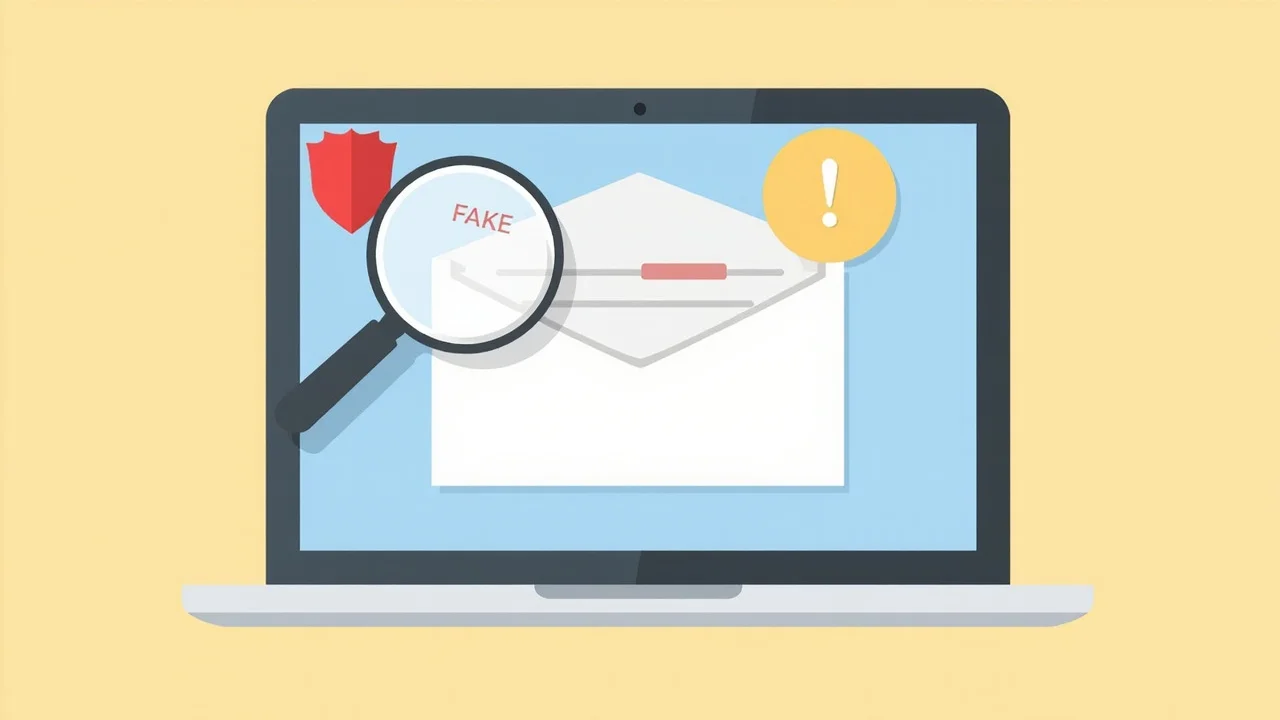
Check the sender address, the link destination, the greeting, the request, and the pressure. A message that says an account will close today, asks for a password or MFA code, or sends you to a domain that does not match the real service should be treated as suspicious [4].
Google’s own phishing guidance gives the same practical rule: do not share personal information from an unexpected message, and do not sign in through a link you have not checked [6].
What should you do if you already clicked?
If you clicked but did not enter details, close the page and report the message through the normal school, platform, or provider channel. If you entered a password or code, change the password from a clean browser session, sign out other sessions, check recovery options, and turn on MFA where available [5].
If the message involved school data, student names, or private information, tell the school contact responsible for privacy or IT support. The Privacy Commissioner’s tools are designed to help agencies assess privacy risks and decide what to do next [1].
How can schools teach this without scare tactics?
Use examples that focus on patterns rather than fear: sender mismatch, urgency, strange links, requests for codes, and pressure to bypass normal checks. A short classroom exercise can ask students to identify the hook, pressure, action, and capture step in a sample message [4].
The goal is not to make every student suspicious of every message. The goal is to make the risky action visible before someone clicks, signs in, or shares a code [5].
Knowledge check
Use these cards to test whether the pattern is clear before you share this guide with students or staff.
Sources and references
[4] Netsafe New Zealand. (2025). Phishing. https://netsafe.org.nz/scams/phishing
[5] CERT NZ. (2025). Top 11 cyber security tips. https://www.cert.govt.nz/individuals/guides/top-11-cyber-security-tips/
[6] Google. (2025). Avoid and report phishing emails. https://support.google.com/mail/answer/8253
[1] New Zealand. Office of the Privacy Commissioner. (2025). Privacy tools for agencies. https://www.privacy.org.nz/responsibilities/privacy-tools-for-agencies/
Key takeaways
- Phishing works by making a sensitive action feel urgent [4].
- Check sender, link, request, and pressure before clicking [6].
- If you entered a password or code, change credentials and check account recovery settings [5].
- Schools should teach patterns, not just show scary examples [4].
- Bottom line: if a message asks you to log in or share a code, verify it outside the message and use Passwords, passphrases, and MFA: a simple guide next [5].
What to do next
- Use the parent guide: How to Spot Phishing Emails, Scams, and Fake Messages.
- Build account resilience with Passwords, passphrases, and MFA: a simple guide.
- For school staff, connect this to Cyber Safety Basics for New Zealand Educators.
- Understand the AI-scams dimension with Deepfake and AI Scams: What NZ Educators Need to Know in 2026.
- See fake Google reset scams in detail with Why those ‘your password wasn’t changed’ emails from Google are actually a scam — and how to spot the real ones.