
Student Digital Footprint Guide
Student digital footprint NZ guide covering privacy settings, posts, accounts, school data, and what to check before sharing online.
Quick answer
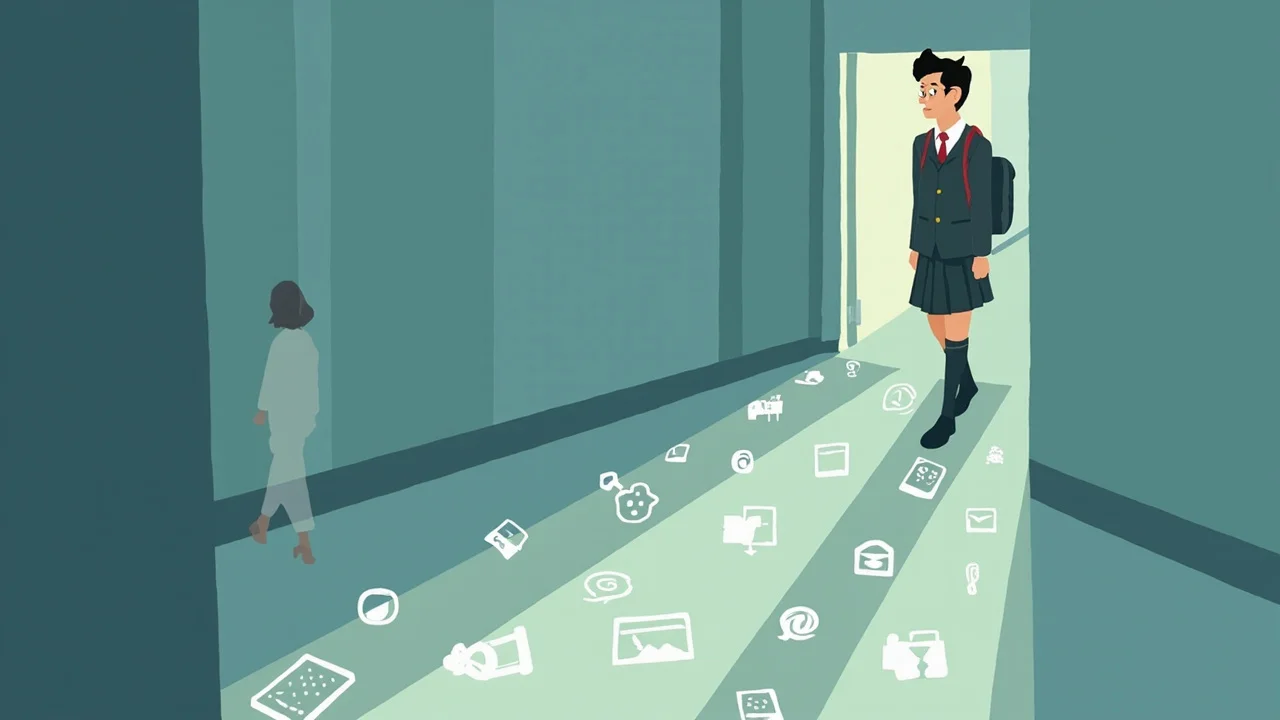
Your digital footprint is the trail created by accounts, posts, comments, photos, search activity, app permissions, and school platforms connected to you. A safer student digital footprint in New Zealand starts with privacy settings, careful sharing, strong account security, and asking for help early when something feels wrong [1].
This guide is for students who want practical rules, not a lecture. Read it with Digital Safety Basics for Students in New Zealand and the school privacy guide for context [1].
What counts as a digital footprint?
A digital footprint includes content you post, content other people post about you, account records, app permissions, location settings, school platform activity, and messages that may be copied or forwarded. Some of it is visible to other people, and some of it sits inside services you use [1].
That does not mean every online action is dangerous. It means your choices about names, photos, accounts, and privacy settings can shape what others can find or infer about you later [1].
What should students check before posting?
Before posting, ask whether the content shows your school, location, routine, personal information, or someone else’s private details. If it would be uncomfortable for a teacher, family member, future course provider, or employer to see it, pause before publishing [1].
Also check whether another person is in the photo or story. Sharing someone else’s details can create privacy harm even when the post feels casual [1].
How do privacy settings help?
Privacy settings can limit who sees your profile, who can tag you, who can message you, and which apps can use camera, microphone, contacts, or location. The Office of the Privacy Commissioner encourages agencies and people to think about collection, use, and disclosure of personal information, and those ideas apply to everyday student choices too [2].
Settings are not a perfect shield. Screenshots, forwarding, compromised accounts, and changing platform rules can still expose content, so settings should support careful sharing rather than replace it [5].
What about school accounts and AI tools?
School accounts often connect to your real name, class, teachers, and school work. Use them for school platforms, not random sign-ups or unrelated apps [3].
Be extra careful before pasting personal information, assessment drafts, or other students’ details into AI tools. The Privacy Commissioner’s guidance on privacy impact assessment is a useful way for schools to think about tool risk before student information is processed [3].
What can you do if something about your footprint worries you?
Start with the accounts you control: remove posts you no longer want public, adjust privacy settings, review app permissions, change weak passwords, and turn on MFA. If the issue involves another person, a school platform, harassment, impersonation, or private information, ask a teacher, parent, caregiver, or trusted support person for help [5].
Do not wait until the situation is severe. Early help is often easier than trying to undo a copied post or compromised account later [5].
Knowledge check
Use these cards to practise the decision before a real post, app install, or account issue appears.
Sources and references
[3] New Zealand. Office of the Privacy Commissioner. (2025). Children and young people privacy. https://www.privacy.org.nz/focus-areas/children-and-young-people-policy-project/
[1] New Zealand. Office of the Privacy Commissioner. (2025). Privacy tools for agencies. https://www.privacy.org.nz/responsibilities/privacy-tools-for-agencies/
[2] New Zealand. Office of the Privacy Commissioner. (2025). Privacy Impact Assessments. https://www.privacy.org.nz/responsibilities/privacy-impact-assessments/
[5] CERT NZ. (2025). Top 11 cyber security tips. https://www.cert.govt.nz/individuals/guides/top-11-cyber-security-tips/
Key takeaways
- Your footprint includes posts, accounts, permissions, school platforms, and copied content [1].
- Privacy settings help, but they do not undo careless sharing [2].
- School accounts should stay tied to school use, not random app sign-ups [3].
- Ask for help early if a post, account, message, or impersonation problem worries you [5].
- Bottom line: before sharing, ask what the post reveals and use Digital Safety Basics for Students in New Zealand as your next safety checklist [5].
What to do next
- Start with Digital Safety Basics for Students in New Zealand.
- Read Privacy checks for school tools and student data.
- Use AI Safety for Students in New Zealand before pasting school content into AI tools.